PRODUCT UPDATES

Changelog.

A better hiring workflow, with every update.
The latest features, improvements, and fixes from Metix AI.

Subscribe via RSS

Latest release
New featureAI Agent

Refine an Agent search without starting over

In Manual mode, you can now add requirements after reviewing an Agent’s first candidate list. Continue in the same conversation, open the next list, and review the people you want to approve.

See how it worksSHORT WALKTHROUGH
A short walkthrough of refining a search and opening the next list. Workflow illustration with sample data.
Read video steps
  1. Review the first candidate list.
  2. Ask Mira to adjust the experience requirement in the same conversation.
  3. Open List 2 and review the new candidate list.
Open video file
  • Keep the conversation open after candidate scoring, so you can adjust the search direction.
  • Switch between search lists and use the updated candidate approval flow.

Refinements are limited. The Agent shows a notice when one refinement remains. This release covers search and approval; it does not add Sequence-based sending to Agent outreach.

How to use this update
  1. Review the first list in your Agent conversation.
  2. Add a requirement in the chat, such as a different experience range.
  3. Open the new list, review your selections, and approve the candidates you choose.
Explore Mira AI Recruiter Link to update
ImprovementFast Search

Better ordering. Fewer repeat results.

Fast Search now has updated result ranking and improved deduplication across multiple rounds of search, so reviewing and refining a search involves less repeated work.

Fast SearchFEATURE ILLUSTRATION
Illustration with sample profiles: a repeated profile is removed from the next round.
  • Updated the ordering of Fast Search results.
  • Improved how duplicate results are handled across search rounds.
How to use this update
  1. Run a Fast Search for your role.
  2. Adjust your criteria and review the next round of results.
Link to update
ImprovementWorkspace

Read at your pace, and go back a step

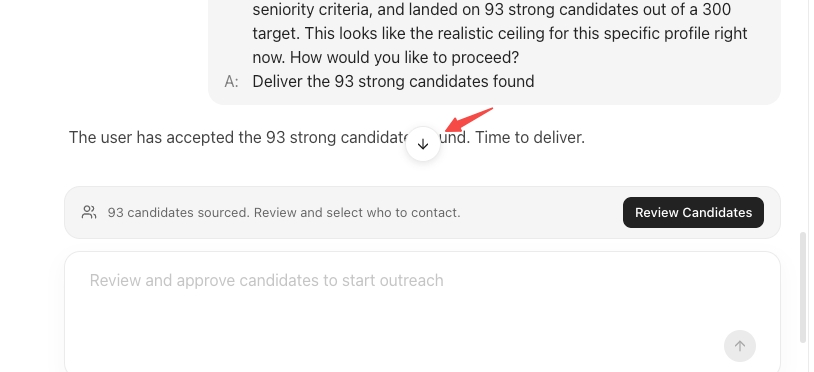
New AI replies no longer pull you away from the message you are reading. Candidate details are easier to scan, and Sequence setup now lets you return to the previous step.

Released chat interface showing the down-arrow that returns to the latest response above Review Candidates.
PRODUCT SCREENSHOTReleased interface: the down-arrow brings you back to the latest reply when you choose.
  • Candidate details have clearer information layout and typography in the first view.
  • Go back to the previous step while creating a Sequence.
  • AI responses keep your reading position instead of jumping to the bottom, with an arrow to reach the latest content.
How to use this update
  1. Scroll up to read an earlier AI response; new replies keep your reading position.
  2. Use the down-arrow when you want to return to the latest reply.
  3. While creating a Sequence, choose Previous to return to the earlier setup step.
Link to update
New featureOutreach

Send Sequences from your own email

Connect an IMAP mailbox and use your own sender address for Sequences started from Fast Search or Deep Search. Manage connected mailboxes from Email integrations in Settings.

Your email · SequencesFEATURE ILLUSTRATION
Connection flow illustration: manage mailboxes, connect through IMAP, then choose your sender for a Sequence. Sample sender address.
  • Connect an IMAP mailbox for Sequence sending.
  • Use your connected account when sending from Fast Search or Deep Search.

Available for Sequences in Fast Search and Deep Search via IMAP. Native Gmail and Microsoft connection options were marked coming soon in this release. Agent outreach is not included.

How to use this update
  1. Open Settings, then Email integrations and Manage mailboxes.
  2. Choose Add a mailbox and connect with IMAP.
  3. Use the connected sender when setting up a Sequence from Fast Search or Deep Search.
Link to update
ImprovementWorkspace

A more consistent hiring workspace

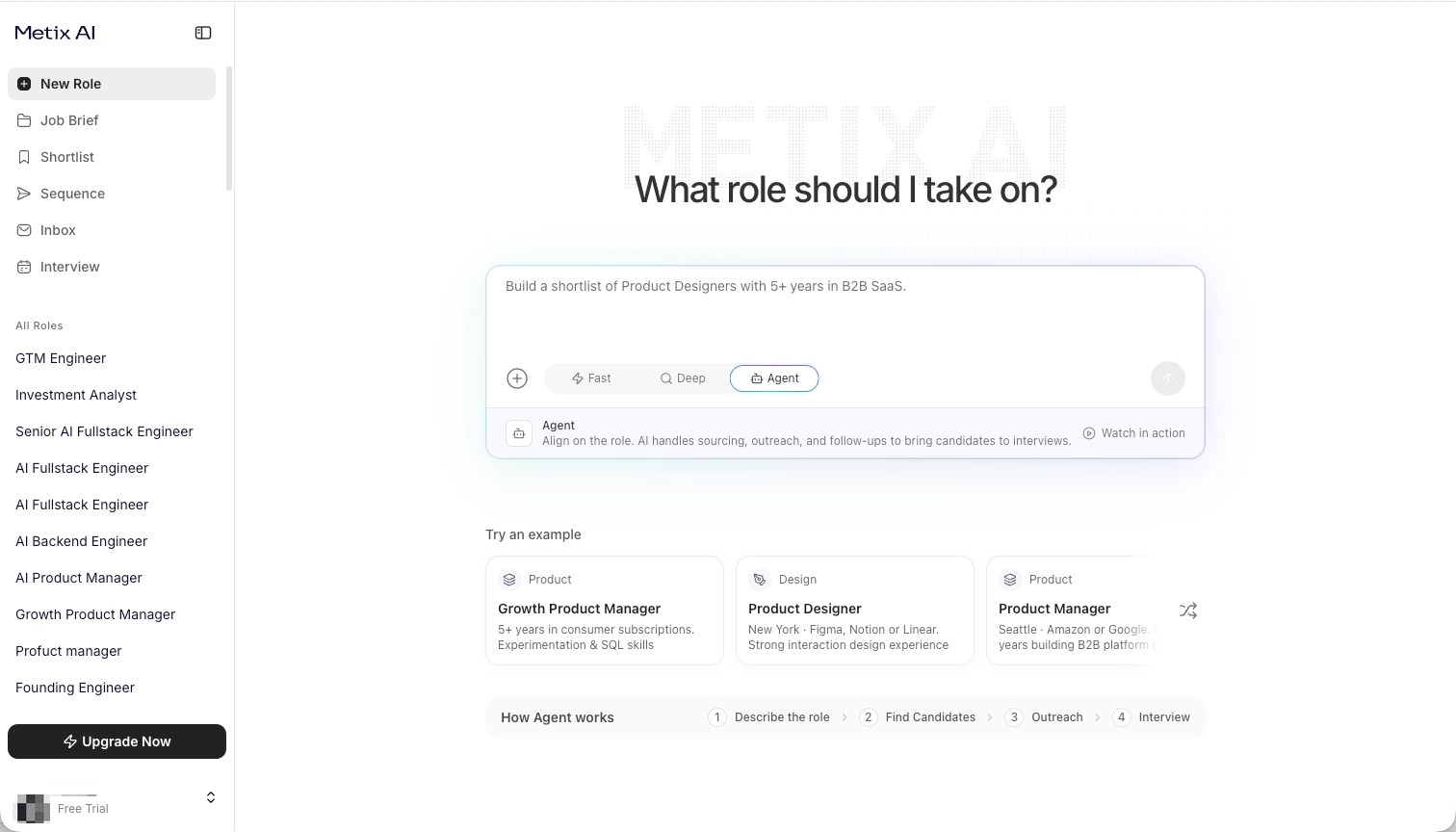
We refreshed the sign-in and sign-up screens, home page, sidebar, and search layouts to make the workspace easier to navigate.

Metix AI workspace showing the updated sidebar, role input with Fast, Deep and Agent modes, and example prompts.
PRODUCT SCREENSHOTThe workspace from the October 21 release, with updated search modes, navigation, and example prompts.
  • Updated layouts across the main entry points and search experience.
  • Consistent empty states and branded loading indicators throughout the workspace.
How to use this update
  1. Open a new role and choose Fast, Deep, or Agent mode in the input.
  2. Use the sidebar to move between your job briefs, shortlist, Sequences, inbox, and interviews.
Link to update
New featureProfiles

More context behind each company

Company information now includes additional fields to help you understand a candidate’s professional background.

  • Company founding year and headquarters.
  • X and Facebook links, plus company tags.

Company fields appear when the information is available.

How to use this update
  1. Open a candidate’s details and inspect the company information in their experience.
  2. Use the available headquarters, founding year, social links, and tags as additional context.
Link to update
New featureDeep Search

Continue refining in Deep Search

Deep Search now supports multiple rounds of search. Candidate details also include a company panel for a closer look at an employer.

  • Continue searching over multiple rounds in Deep Search.
  • Open the company panel from candidate details to see more company information.
How to use this update
  1. Review a Deep Search list, then add a requirement in the conversation to continue the search.
  2. Switch between the resulting lists to review the different rounds.
  3. Open the company panel from a candidate’s experience for employer context.
Link to update
ImprovementFast Search

Refine Fast Search by language

Fast Search now supports language filtering, alongside updates to skill matching and semantic result ranking.

  • Narrow a search with language criteria.
  • Updated how skills and semantic relevance contribute to results.
How to use this update
  1. Include the language requirement in your Fast Search criteria.
  2. Review the language-filtered results alongside the rest of your role requirements.
Link to update
New featureWorkspace

Start with an example. Make it your own.

The refreshed home page introduces example prompts and clearer guidance for Fast Search, Deep Search, and Agent mode.

Try an exampleFEATURE ILLUSTRATION
Interactive illustration: choose an example to fill the input, then edit it. Choosing an example does not start a search.
  • Explore six different example prompts at a time and shuffle for a fresh set.
  • Select an example to fill the input, then edit it before starting a search.
  • Find Billing in the profile menu at the bottom left of the sidebar.
How to use this update
  1. Choose Try an example on the home page, or shuffle to see another set.
  2. Select a prompt to fill the input.
  3. Edit the requirements for your own role, then start the search when you are ready.
Link to update

Open original image (opens in a new tab) ↗